photo sharing and upload picture albums photo forums search pictures popular photos photography help login
Tom McDonald (MrQuietGuy) | profile | all galleries >> Photoshop Tutorial - Blending Two Images Together tree view | thumbnails | slideshow

Photoshop Tutorial - Blending Two Images Together

This tutorial shows how to blend two images together side by side so the junction between them is a gradual blend from one image to the other.

Click on the first image, then keep clicking on "Next" to go to the next step.

Note: When viewing this tutorial, you may want to switch between large and original (larger) image sizes. Use Large size to get the overall picture, and use Original size for a clearer view of the details.
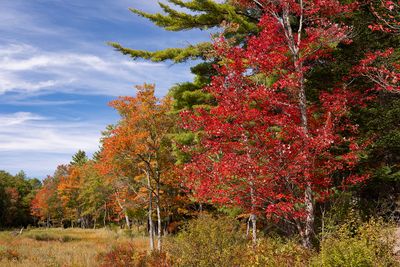
The result we want
The result we want
Start by opening both images
Expand the canvas of the first image to make room for the second image
Move the second image over the first and position it
Specify how to do the blend
How the Quick Mask looks
Activate the blend
Activate the blend
The final result
The final result